PLANERGY is compatible with Microsoft Teams. It allows you to integrate with your Microsoft Teams account to better manage communications with your team.
The integration allows you to efficiently request, approve, and manage purchase orders in PLANERGY by receiving notifications and updates directly in your Microsoft Teams account.
You can decide which specific notifications should be sent to your account and the channel in which you should receive your notifications.
How To Integrate PLANERGY With Microsoft Teams
You can set up the Microsoft Teams integration in your Planergy account Workflows App.
- Open Workflows app in MS Teams:
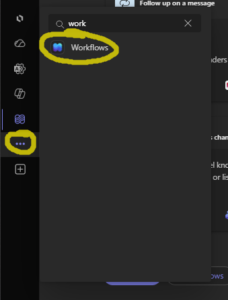
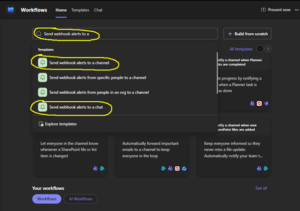
- On the Home page, type in ‘Send webhook alerts to a’ in the Find templates field and select the appropriate template. Usually Send webhook alerts to a channel or Send webhook alerts to chat will suffice.
- Fill in parameters for the selected template
- For Send webhook alerts to a channel fill:
- Team the channel is in, and
- Channel
- For Send webhook alerts to chat fill:
- Chat
- For Send webhook alerts to a channel fill:
and click Save. The name for the new workflow will be automatically generated.
4. After successful saving process, a new workflow details page will open. Click Copy webhook link to copy the needed link the clipboard: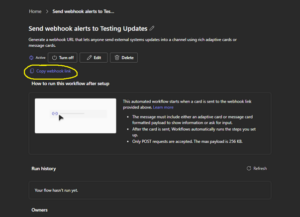
5. Navigate to PLANERGY Advanced Control > Integrations > Microsoft Teams and press Setup.
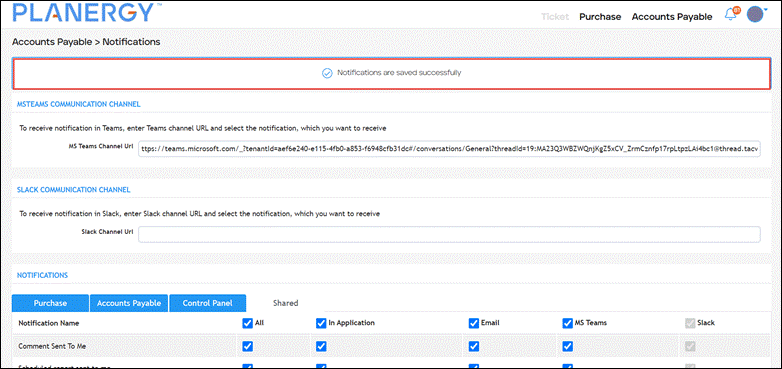
The Notifications page is displayed.
6. Enter the link of the Microsoft Teams channel you copied in the MS Teams Channel Url field. 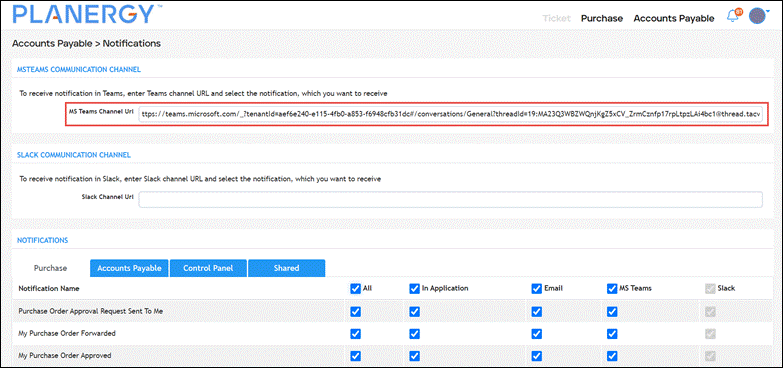
7. Select the notification that you want to receive under the Purchase, Accounts Payable, Control Panel, and Shared tabs. 
8. Press Save. The notification confirming the successful saving of settings is displayed.