
PLANERGY PunchOut integrations allows users to access a supplier’s live online catalog directly from PLANERGY.
Items are selected on the supplier’s website using current pricing and availability, then automatically returned to PLANERGY as a purchase requisition ready for approval.
This eliminates manual data entry while maintaining your organization’s procurement controls.
For more information on setting up the PLANERGY PunchOut, refer to How to Configure PunchOut Integration.
How Does A PunchOut Integration Work?
A PunchOut integration connects PLANERGY directly to a supplier’s online catalog.
Users shop on the supplier’s website using negotiated pricing, then return their shopping cart to PLANERGY where the normal approval workflow continues.
When the purchase order completes the approval workflow in PLANERGY the order is automatically placed on the supplier’s website.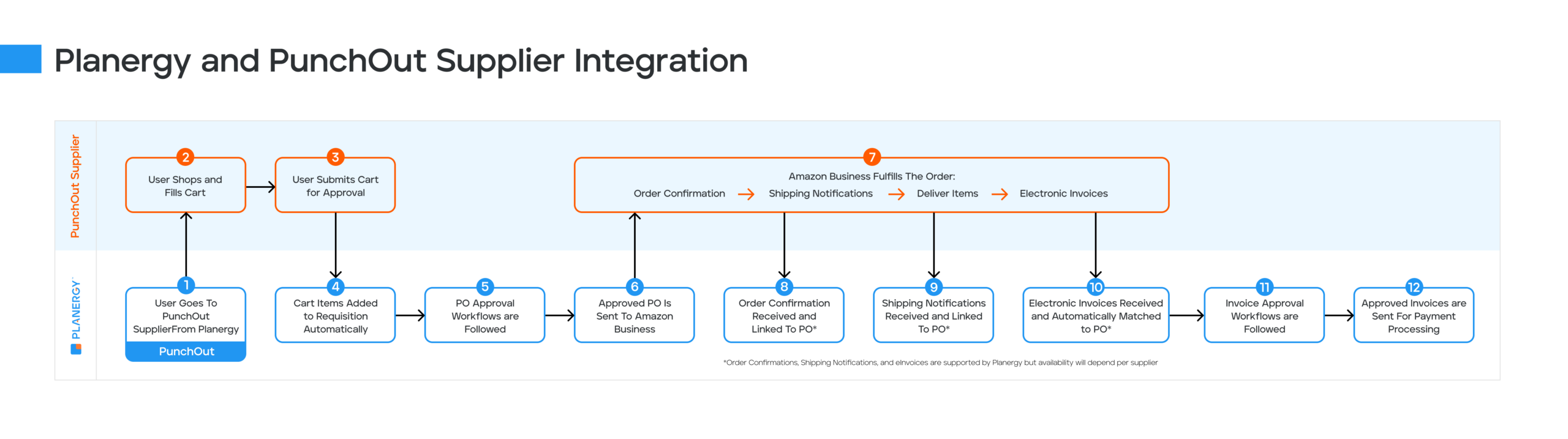
How to Configure PLANERGY PunchOut Integration
To start using the supplier’s catalog for procuring the items and creating a requisition directly in PLANERGY, you must first set up the supplier PunchOut on your PLANERGY account by following the steps below.
Enable PunchOut Feature
To integrate PLANERGY PunchOut, the PLANERGY account owner should first enable it in the PLANERGY account by following the steps below.
- Navigate to Control Panel > Advanced Controls and press Integrations.
 The Control Panel > Integrations page is displayed.
- Scroll down and press Setup in the row of Other PunchOut.
 The PunchOut feature is enabled on your account.
Now, you can create a PunchOut supplier in your PLANERGY account.
For more information, refer to How to Create PLANERGY PunchOut Supplier.
How to Create PLANERGY PunchOut Supplier
To create PunchOut Supplier after enabling the PunchOut feature in your PLANERGY account, follow the steps below.
- Navigate to Control Panel > Catalog and press Suppliers.
 The Control Panel > Suppliers page is displayed.
 - Press Add New Supplier. You can also update an existing supplier by pressing anywhere in the row of the supplier you wish to edit.
 The Add Supplier page is displayed.
- The PunchOut section is visible on the Supplier page when the PunchOut feature is enabled in your account.

- Check the box Is Enabled.

Note
You need to ask your Punchout suppliers for the required credentials and enter them in the Punchout section. - Enter the user identity set up on the supplier web store in the From/Sender Identity field.

- Enter the unique user credential domain in the From Credential Domain field.

- Enter the user password that is set up on the supplier web store in the Shared Secret field.

- Enter the Punchout URL to log in to the supplier web store in the PunchOut URL field.

- Enter the supplier identity in the To Identity field.

- Enter the unique supplier credential domain in the To Credential Domain field.

- Enter the request URL in the Purchase Request URL field.

- Press Save.
 The success notification is displayed.
You can now place PunchOut orders when needed.